Easy Timelapse · iPhone and iPad app
Smooth timelapses, from day to night.
Point your iPhone at the sky and tap record. As the light changes, the exposure changes slowly, frame by frame, so day to night looks smooth. Pro dials are one tap away when you want them.
Free for 14 days · then pay once, no subscription (or 1 shoot a day, free)
- 14days free
- 8Kbiggest export
- 1payment, no subscription
Inside the app
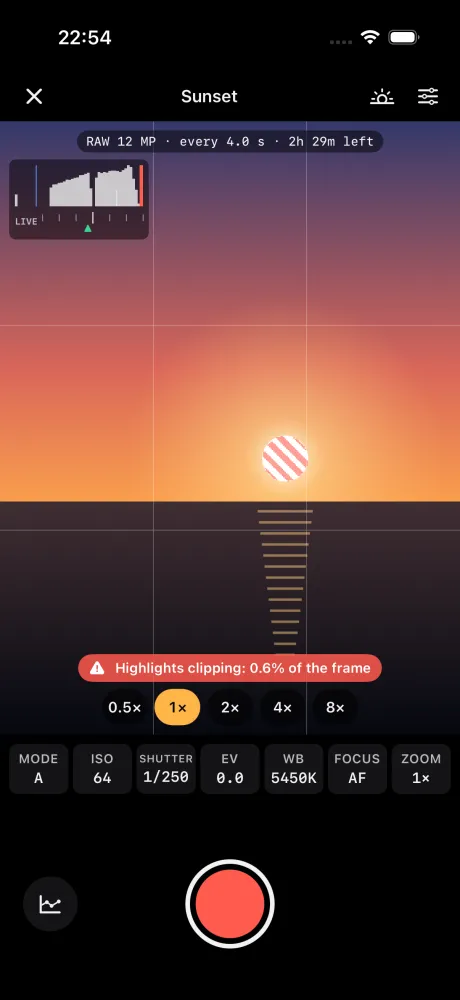
Frame it, shoot it, check it, export it.
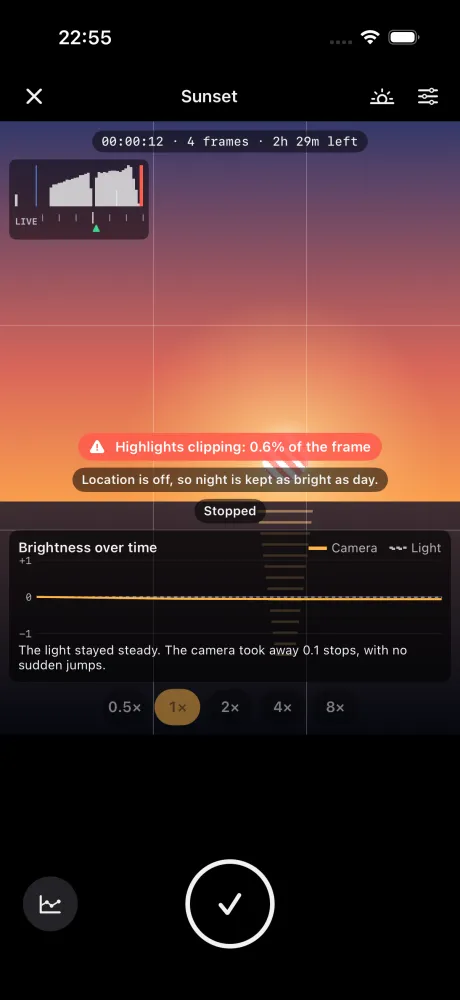
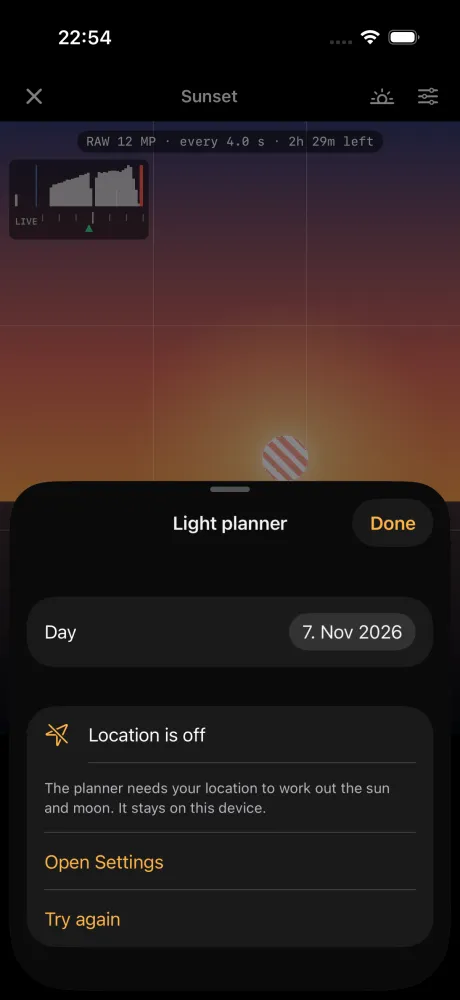
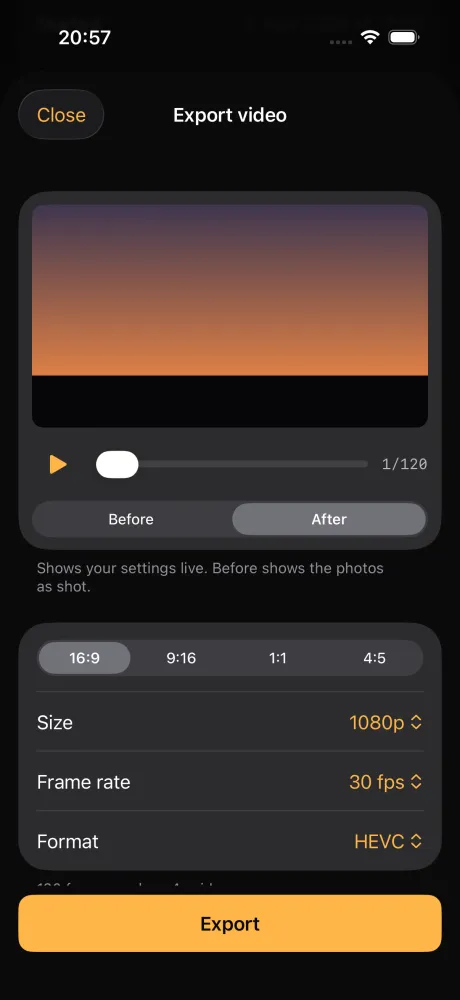
How it works
Easy by default. Pro when you want it.
Frame the shot
Pick a lens and a preset like Sunset. Put the phone on a tripod.
Tap record
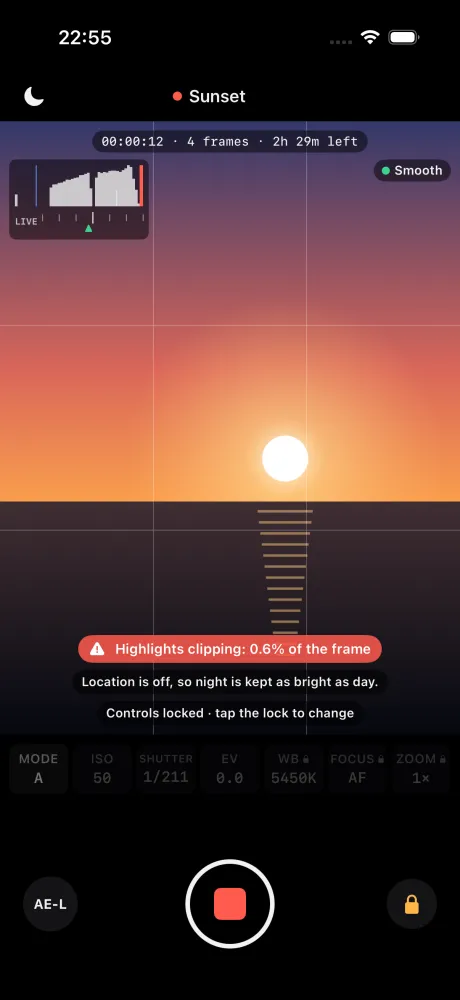
The exposure follows the light slowly, so the video stays smooth.
Export the video
Pick a shape and a size. Share it or save it to Photos.
What it does
Shoot day to night, smoothly
Exposure changes a little each frame, so sunsets and sunrises don't flicker.
Turn real dials
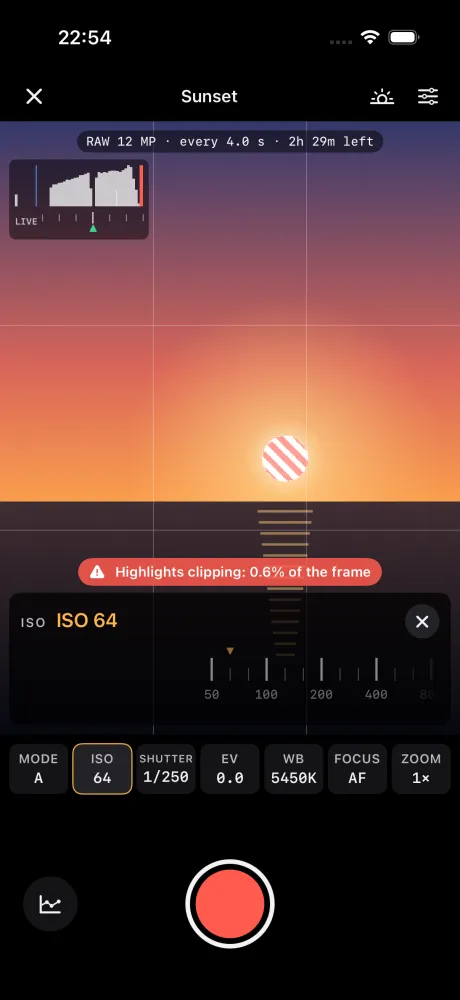
Mode, ISO, shutter, EV, white balance, focus and zoom.
Pick a lens
Apple's lens marks, like 0.5×, 1×, 2×, 4×, 8× on iPhone 17 Pro. Zoom in between.
Shoot RAW
12 MP RAW by default, for the most room to edit.
See the light live
Histogram from the RAW frame, zebras or false colour, waveform, focus peaking, level and grid.
Catch clipping early
Alerts at limits you set. Highlight guard takes a little light off when a frame clips.
Bracket for HDR
3 or 5 shots for every frame, merged when you export.
Stop lamp flicker
Anti-flicker for 50 Hz and 60 Hz lights.
Know your numbers
An interval calculator, and how much storage time is left.
Plan the light
Sunrise, sunset, golden and blue hour, the moon and the Milky Way. One tap to shoot that time.
Export any shape
16:9, 9:16, 1:1, 4:5 at 1080p, 4K or 8K, in HEVC. With deflicker and crop zoom.
Bring camera photos
Import RAW photos from your camera (CR3, NEF, ARW) and turn them into a timelapse.
Leave the phone. Watch the shoot.
Set it up once. Then check the frames and the exposure without touching the iPhone.
Apple Watch
Start, stop and AE lock from your wrist.
Lock Screen
A Live Activity shows the shoot on the Lock Screen and in the Dynamic Island.
Your shots stay on your device.
No account and no servers. Your photos and videos never leave your device unless you share them. Privacy policy
- No account
- No servers
- No ads
- No tracking
Try it free, then buy it once
Days 1 to 14
Everything, free
No sign-up and nothing to cancel. The trial starts when you first open the app.
After the trial
1 shoot a day, free
Start one new shoot a day and export up to 1080p. The count starts again at midnight.
One purchase
Easy Timelapse Lifetime
Unlock everything for good. Pay once. No subscription, no renewals.
Easy Timelapse · lifetime
Pay once
No subscription. The App Store shows the price for your country.
- Free for 14 days first
- Every feature, for good
- Family Sharing included
Free after the trial
- Auto exposure, EV and AE lock
- 1 new shoot a day
- Export up to 1080p
Lifetime adds
- Unlimited shoots
- Manual, shutter-priority and ISO-priority exposure
- HDR bracketing
- 4K and 8K export
One kit, from camera to finished film
Use one. Or use them together.

Questions
Which iPhone or iPad do I need?
Any iPhone or iPad with iOS 18 or iPadOS 18 or later. The Apple Watch app needs watchOS 11 or later. The lenses and photo sizes you see depend on your device.
Why does the video not flicker?
At sunset the light changes fast. If the camera jumps to each new exposure, the video flickers. Easy Timelapse eases each change in over several frames, so the brightness moves smoothly.
Does it need my location?
No. If you allow it, the app works out where the sun is, on your device, for the planner and for how dark night should look. Without it, the app still works and night is kept as bright as day.
Can I export in 8K?
With Lifetime, yes, when the photos are big enough: 48 MP ProRAW from the iPhone, or RAW photos from your camera. 12 MP photos go up to 4K.
What happens after the free days?
You can still start 1 new shoot a day and export up to 1080p, free. Auto exposure, EV and AE lock stay free. Easy Timelapse Lifetime unlocks the rest for good.
Help and support
Email us: support@colormetriclabs.com
Tell us your device, its iOS version and what happened. If a shoot went wrong, you can attach the app's debug log from Files › Easy Timelapse › Logs. To get your purchase back on a new device, tap the button at the top left of the home screen, then Restore Purchase.
Read how the app handles your data in the Easy Timelapse privacy policy.
Catch the sunset, smoothly.
Free for 14 days · then pay once, no subscription (or 1 shoot a day, free)
Questions: support@colormetriclabs.com